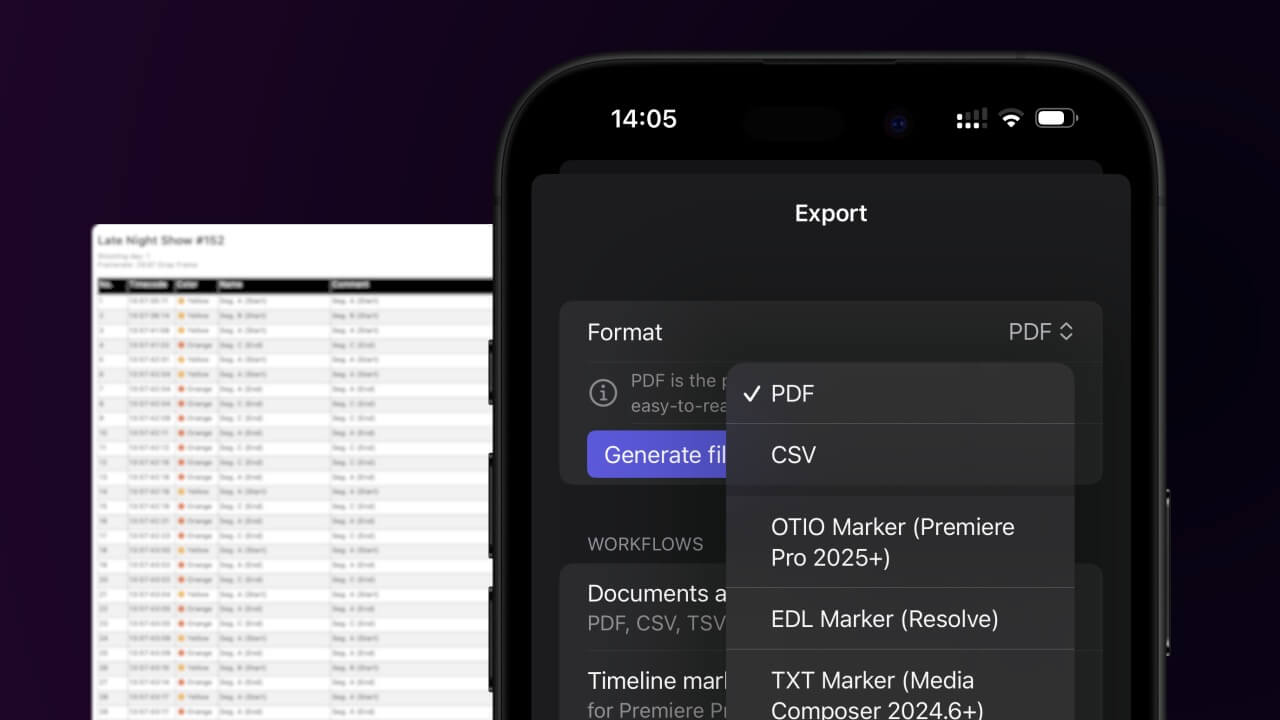
1. Export a CSV file from Live Timecode Notes app
Open the project in the app, then select "Export Notes" from the top menu. Select "CSV". Generate and save the file.
2. Use the "محول العلامات" to convert the CSV file into a ptx marker file
Open the free محول العلامات, select "CSV" and set "convert" to "Pro Tools > PTX File (.ptx)". Generate and download the file. إذا واجهت مشكلات في تحويل الملف، يمكنك التواصل مع الدعم المجاني.
Ensure that the CSV file contains columns labelled "Timecode In", "Name" and "Comment". Otherwise, it will not work. You can also add columns for 'Colour' and 'Timecode Out'.
🚀 تم
هذا كل شيء الآن! إذا وجدت هذا الشرح مفيدًا، فيرجى مشاركته لدعمنا. وإذا كانت لديك أي اقتراحات حول كيفية تحسين سير العمل، فأخبرنا!